


Netduma Fraser
-
Posts
87501 -
Joined
-
Days Won
1946
Everything posted by Netduma Fraser
-
Disable BI in Settings > Troubleshooting > Advanced and see if its better please
-

Better ping from a further away server.
Netduma Fraser replied to jame0174's topic in Call of Duty Support
They can be mislocated on both, if you provide the ID I can check where it is supposed to be -
Better ping from a further away server.
Netduma Fraser replied to jame0174's topic in Call of Duty Support
It's likely the server is mislocated on the map, if you provide the ID for it we can get it corrected -
Okay good to hear, thanks for the update, I'll pass it on to the team to investigate
-
Could you disable BI in Settings > Troubleshooting > Advanced, reboot from the interface then try again please
-
Okay so when you play a game and the little globe icon here, you have that set to Europe?
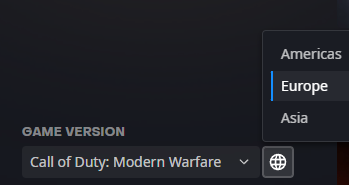
-
The whole purpose of the router is to allow you to get the best connection possible and give you the freedom to have more choice in the servers you play on. We've never advertised it as something to get you easier games. You're referring to HybridVPN which is in settings, as normal you'll need a VPN subscription from a 3rd party VPN provider that supports OpenVPN or Wireguard configuration files to use it.
-
Good to hear, thanks for the update!
-
Solicitação de participação no programa beta do Duma R3
Netduma Fraser replied to Luiz Fernando's topic in Netduma R3 Support
Added, let us know how you get on https://forum.netduma.com/forum/151-netduma-r3-early-access/- 1 reply
-
- 1
-
.png)
-
It looks like you're in the UK but trying to connect to the Americas on Battle.net, do you get the same issue when selecting EU?
-
Are you using a VPN at all?
-
Netduma losing internet at arandom times
Netduma Fraser replied to gearsniper550's topic in Netduma R3 Support
Its in Settings > Troubleshooting > Advanced -
Netduma losing internet at arandom times
Netduma Fraser replied to gearsniper550's topic in Netduma R3 Support
Go to Settings > DHCP > Add Rule > Select a device and save, repeat for all your devices. Also in DHCP settings set the lease to 10,000. Make those changes, reboot the router from the interface and see if it happens again. -
When did it start happening exactly? Did you change any settings/physical setup prior to it happening?
-
An AP connected to the ONT after removing the R3 or when connected to the R3? What firmware are you on currently? If you disable QoS fully from the SmartBOOST menu do you get the same issue?
-
It's not always reliable as the servers used are hardcoded on the router but they do change. Best to change/find the percentages that work best for you manually
-
When you connect to the WiFi on the R3 it works? How did you disable the Geo-Filter exactly?
-
That's not a malfunction, it's designed to disconnect everything from the internet when running the test. You don't need to do the tests everyday. You can also test your speed elsewhere and adjust the speed on the router if needed and adjust Congestion Control which is what the Auto Setup does.
-
Battlefield 6 Servers Not Being Filtered
Netduma Fraser replied to FurtherStill's topic in Netduma R3 Support
I responded to your other post about this, it's not related -
NEW R3 FIRMWARE - DumaOS 4.0.540
Netduma Fraser replied to Netduma Alex's topic in Netduma R3 Support
Yes we're working on some big features which are taking up a lot of resources, it'll be worth the wait -
That's just when you load up the game, it'll ping all the available servers but doesn't show the servers within your radius at that moment.
-
Do you get the same issue when connected directly to your modem?
-
Added
-
When connecting to VPN all devices lose connection
Netduma Fraser replied to alex.devine's topic in Netduma R3 Support
Can you provide a screenshot of the HybridVPN section with how you've made the rules please? -
Why is th R3 not helping with buffer bloat?
Netduma Fraser replied to Mach3r's topic in Netduma R3 Support
I covered it in a topic you made but you need to disable Share Excess. Though for getting bufferbloat down I'd use Congestion Control, not setting speed for particular devices. Are you required to enter a remote IP there? If not don't put it in just have the local IP.