


Netduma Fraser
-
Posts
86509 -
Joined
-
Days Won
1867
Everything posted by Netduma Fraser
-

NEW XR500 BETA FIRMWARE: 3.3.535
Netduma Fraser replied to Netduma Lew's topic in NETGEAR Nighthawk Support (XR range)
Shouldn't be much longer now! -
FIRMWARE: 3.3.308 Smart QoS (Hit Detection)
Netduma Fraser replied to TODDzillaInLA's topic in Call of Duty Support
By lowering the Congestion Control sliders -
Is QoS needed if you have enough bandwidth ?
Netduma Fraser replied to unknownid's topic in Netduma R2 Support
You're very welcome, any other questions just ask! -
Is QoS needed if you have enough bandwidth ?
Netduma Fraser replied to unknownid's topic in Netduma R2 Support
You can port forward on the R2 but without the R2 in the DMZ of the tp-link you would be behind the tp NAT/firewall so wouldn't get an Open NAT. You could port forward the same ports on the tp instead as well as the R2 and that should work. The R2 does have its own firewall though so it is safe to use the DMZ. Yes those features are working as far as I am aware. -
If you want to use the Geo-Filter it's best to be the party leader otherwise you risk being kicked out if a game is found outside your radius. For friends you'll need to add them to the allow list so you can always connect to them, you can see how to do that at the bottom of this guide: https://support.netduma.com/en/support/solutions/articles/16000077072-dumaos-optimal-settings-guide-geo-filter
-
Is QoS needed if you have enough bandwidth ?
Netduma Fraser replied to unknownid's topic in Netduma R2 Support
A+ would be good yes but focus more on the actual graph and values so that the two tests closely align. You can use them yes but as you have seen there are some bugs around it reverting/staying enabled but you may not experience that. -
Yes the speeds you pay for/expect you should enter there
-
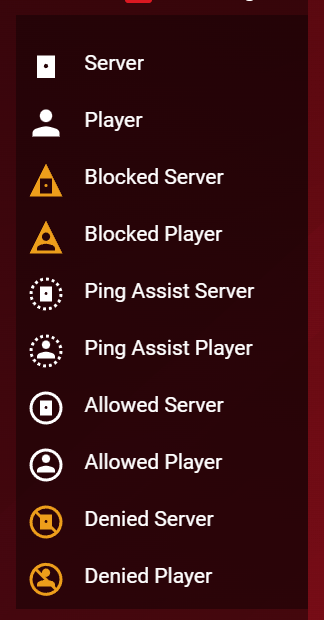
The host of the game you're in will always appear as the biggest icon on the map and usually within your radius. So there is the legend on the right side, I can explain what they mean: So server/player you already know, blocked means it's been blocked by your radius/Geo-Filter settings. Ping Assist means that server or player has been connected to via ping assist. The bottom 4 refer to the allow/deny list so if something you have allowed/denied appears on the map it will look like that. You may also see authentication servers that appear with the solid white circle around them indicating they have been allowed which mean they have been whitelisted by us for everyone as it's required to play online for your game/console. Other than the fact it has the solid white circle around it you'll most often notice it outside your radius, usually in Ireland or West Coast US. These servers will not impact your game experience even if their ping appears to be high so you can ignore them.
-
Is QoS needed if you have enough bandwidth ?
Netduma Fraser replied to unknownid's topic in Netduma R2 Support
Best thing to do is a Connection Benchmark test, you'll want to get the Ping Under Load graph to look like the Ping Test graph as much as possible. It's best to start with a high value for Congestion Control (set to Always), say 95% then do a test, decrease by 10%, test, decrease by 10% etc, until you get to a value that is pretty good and then try 5% either side of that value to see if it can be improved. It's important to note that Download & Upload on Congestion Control don't have to be the same value and that you may have a better experience with differing values. IPv6 should be okay now, I would still suggest using another router to handle PPPoE at the moment. -
Yes 0 is the same as disabled. The Geo-Filter shows connections as and when they make a connection to you, when you boot up the game the game tests your ability to connect to servers worldwide, hence why you can see them all on the map briefly. This is also why it is important to make changes before that test occurs. Once you're on the game you'll potentially see any servers it attempts to connect to but can't or just a server that is allowed. If you set it all up before hand then it should just find one within your radius pretty quickly.
-
Some good advice above, check your modem interface to see if it has a DMZ function, if it doesn't then check for port forwarding, if it doesn't does the modem have WiFi? If it does but doesn't have any of those software features then it would be a good idea to get a different modem. You can use the Geo-Filter to force different servers around the world but it's not always guaranteed. Just so you know we won't provide support for circumventing SBMM.
-
Go to the QoS page, on the Congestion Control panel at the top, click the icon and set bandwidth speeds
-
Is QoS needed if you have enough bandwidth ?
Netduma Fraser replied to unknownid's topic in Netduma R2 Support
If on your entire network it's just those two devices then it's not as needed but still a good idea to use it. An automatic app/phone update could occur and cause you to lag which could be easily prevented by using QoS. You will have a very small network queue and with Gaming prioritized it would be at the top of any potential queues. -
hybrid vpn setup not working
Netduma Fraser replied to iil5's topic in NETGEAR Nighthawk Support (XR range)
Thanks I've responded -
Share Excess Bandwidth With One Device
Netduma Fraser replied to Trendz's topic in NETGEAR Nighthawk Support (XR range)
No there isn't but it has been requested before so it'll likely be implemented in future. If the PC needs a lot of bandwidth it will automatically take it from devices that don't need it, plus Congestion Control will prevent any lag caused by the other devices. -
It's been requested before but there is no current way to backup and restore settings
-
My ISP does not have a modem (NEED HELP!!)
Netduma Fraser replied to itz_KonfliK's topic in Off Topic
Yes that's correct once you've completed the Setup Wizard. Use 192.168.77.1 to access, best to do it via a wired device if you can. -
Done!
-
Try the port forwarding I mentioned before, it is quite hard to get an Open NAT on multiple consoles at the same time, it won't affect your connection quality on moderate, just determines who you can connect to but as it's server based that isn't a problem either
-
hybrid vpn setup not working
Netduma Fraser replied to iil5's topic in NETGEAR Nighthawk Support (XR range)
No that won't be possible, NG removed telnet access unfortunately on the more recent versions. We don't have a public facing ticket system -
hybrid vpn setup not working
Netduma Fraser replied to iil5's topic in NETGEAR Nighthawk Support (XR range)
Unfortunately I'm not a developer so I can't speed up issues like this, I have made a ticket for it so it is known -
My ISP does not have a modem (NEED HELP!!)
Netduma Fraser replied to itz_KonfliK's topic in Off Topic
Ahh I see, interesting, plug the R2 into the wall then reboot the R2 from the interface, wait 4 minutes then access. This is assuming you've already accessed the R2 and gone through the Setup Wizard which is required to be completed before you can get internet. -
Disable the Geo-Filter before you launch the game and then check the NAT status. If it is Open then it's the Geo-Filter blocking the reading and you can enable it and ignore it if it shows moderate in the future.
-
Reset Bandwidth Allocation and leave it at the default settings. I would suggest you lower Congestion Control more, it's not doing a lot at those percentages. We usually suggest starting at 70% and then experimenting from there to see what works best for you.
-
hybrid vpn setup not working
Netduma Fraser replied to iil5's topic in NETGEAR Nighthawk Support (XR range)
Thanks for your input. If you disable the VPN prior to rebooting it should work correctly when you enable again.
.png)