
PharmDawgg
-
Posts
3911 -
Joined
-
Days Won
25
Everything posted by PharmDawgg
-
Make a request in the forum and attach @Netduma Fraser He. respond to you as soon as he can. Just so you are aware. If you are speaking of the .23 firmware. It is a beta. So there may be bugs.
-

R3 no longer pick up Call of Duty(Series) Packets
PharmDawgg replied to Chaiyoabc's topic in Netduma R3 Support
Go to the Geofilter page and look for the three vertical dots in the top right hand corner. Three Vertical Dots.jfif -
Netduma R3 and Extender AX1800 ; EAx15 Netgear Mesh Extender
PharmDawgg replied to boothay's topic in Netduma R3 Support
I had to factory reset my GtAx11000pro and RtAx86u and then set them up in in AP mode by connecting an ethernet cord to each one. After making sure they were in AP mode I then connected the GtAx11000pro (Wan) to the R3 (Lan). Then I set the Ax86u into Aimesh node by way of the Asus iphone app. Then make sure you turn off the wifi on the R3. I know it is tedious but it works for me currently. -
He will and feel free to repost. Just don’t over do it. 😂
-
Sorry. Only @Netduma Fraser can do this. Just request from him in the forum or dm him and he will get it to you as soon as possible. Just be patient with him he is swamped right now with managing the forum alone.
-
4.0.23 Changelog: Steady Ping improvements Auto Ping Host improvements Geo-Latency improvements
-
It hasn’t been implemented yet. IPv6 is only able to turned off or on in its current state. @Netduma Fraser has said that it has been requested to be added though.
-
The suggestions below should help if you are continuing to connect to servers outside of your radius. I can't guarantee this will work 100% of the time though. Disable GeoLatency Disable PingAssist (set it to 0,0) Enable Strict Mode Disable Fast Search Then restart the game or wait 10 minutes (in the lobby in the game), if that doesn't work, reboot PC/Console and check again.
-
It will be ported to the R2 at some point and time. Unsure of the time frame though or if it will have similar functionality or if some functions will be left out. We will have to wait and see.
-
Cannot speak on the PS5 issue. But the Ping Optimizer/Speed Test isn’t working for some including myself. As of right now no solution in place until Netduma devs return from Christmas break which will probably be Jan 1st.
-
No sir.
-
CPU 3 is always low or nonexistent. It needs to pick up some of that load. 😂
-
The suggestions below should help if you are continuing to connect to servers outside of your radius. I can't guarantee this will work 100% of the time though. Disable GeoLatency Disable PingAssist (set it to 0,0) Enable Strict Mode Disable Fast Search Then restart the game or wait 10 minutes (in the lobby in the game), if that doesn't work, reboot PC/Console and check again.
-
Have you assigned your device you're port forwarding a static IP address? Have you rebooted everything the router and device?
-
Let me preface is I don't think UPNP is working correctly with multiple gaming devices. Who knows it may not be working with single devices that well either. So I think your best best is going to either Port Forwarding or using the DMZ. I would not use combinations of UPNP and Port Forwarding specifically. In my experience it can cause conflicts. It's great that you were able to resolve the issue of double NAT by disabling UPnP and rebooting your routers. Now, let's work on getting back to an open NAT type on your Xbox. Here are some steps you can try: Port Forwarding: Access your router's settings. Find the port forwarding section. Forward the necessary ports for Xbox Live. Common ports include: TCP/UDP 3074 UDP 88 TCP 80 UDP 500 UDP 3544 UDP 4500 DMZ (Demilitarized Zone): This is another option the DMZ, which effectively opens all ports for that device. Be cautious with this approach, as it can expose your Xbox to potential security risks. Static IP Address: Assign a static IP address to your Xbox. This helps in ensuring that the port forwarding rules are consistently applied to the correct device. Xbox Network Settings: On your Xbox, go to the network settings. Set the IP address to manual and input the static IP address you assigned. Set the DNS settings to manual and use the DNS addresses provided by your ISP or Google's public DNS (8.8.8.8 and 8.8.4.4) this is optional. Use what you prefer. Restart Your Router and Xbox: After making changes, restart both your router and Xbox to apply the new settings. Check for Firmware Updates: Ensure that your router's firmware is up-to-date. Hope this makes sense and helps your situation. Game on.
-
R3 steady ping and geofilter issue.
PharmDawgg replied to JasonKnight's topic in News & Announcements
I game on pc primarily but I do game on console as well. Let me preface I am not a dev. Question 1: It depends. I would go with what your gaming on. I believe the geofilter bases it function off whe designation you attach to your device in device manager. Since it is PC I would select device Computer. If your experience not optimal or if there are issues. I would select Console next then either Playstation or Xbox. PC/Console/Playstation/Xbox. These are your options. Pick the one that works best for your game and pc. Honestly with my OCD it bothers me to label my PC with anything other than Computer but it is what it is. lol I wish it was more of a definitive answer but it isn't. It is more of a trial and error situation. Question 2: It depends. If you SmartBoost the activity gaming any game will be prioritized. 1st come first serve but I believe you can prioritize COD specifically. I haven't done it myself. I prioritize my specific device vs the activity (i.e.gaming). Others may suggestion that work best for them. Hope this helps and makes sense. Game on. -
R3 steady ping and geofilter issue.
PharmDawgg replied to JasonKnight's topic in News & Announcements
Go to chrome://settings/system in the web browser and make sure Hardware acceleration is enabled, does that fix the issue? The 2nd issue that is? -
Also you can use a MAC address lookup tool to also point you in the right direction. But sometime it doesn’t tell you anything 😂
-
Go to Settings>WAN>Advanced WAN settings I would post a screenshot but it has sensitive info. 😂
-
ANNOUNCEMENT: Introducing the Netduma R3
PharmDawgg replied to Netduma Lew's topic in News & Announcements
I haven’t had any issues with Smart Boost. So I leave it active when I have had to update games or even updates for my console/pc. It may not bed downloading at 100% but it goes quick enough to not cause me any inconveniences. Since everyone setup is different maybe some others can speak on their set up as well. Sorry for the misinterpretation on your previous post. 👍🏽 -
ANNOUNCEMENT: Introducing the Netduma R3
PharmDawgg replied to Netduma Lew's topic in News & Announcements
@JustinW Can you post your support question here. It will facilitate your issue being addressed straight away. Thanks. https://forum.netduma.com/forum/148-netduma-r3-support/ -
Where do you access the wps function in the gui. I think it would be nice to be able toggle it on or off. I don't think I have seen it. Please let me know if anyone else knows where it is located. Thanks.
-
Go to Ping Optimizer>Advanced. You should see the Congestion Control sliders.

-
Just wanted to confirm what @mindlash is saying but it doesn't work me either at all along with the speed test app. No matter how many times your run it. And if you try to run it repeatedly the router becomes unstable. I know it is in the works to be fixed. Just an fyi.Thanks.
-
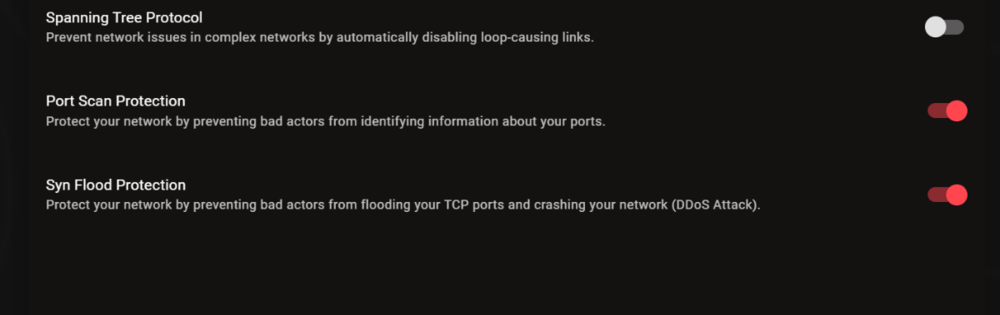
I ran a check for most common and troublesome internet ports just to check to see if the router would pass. Solicited TCP Packets: Passed Unsolicited Packets: Passed Ping Reply: Fail: Your system REPLIED to our Ping (ICMP Echo) requests, making it visible on the Internet. Most personal firewalls can be configured to block, drop, and ignore such ping requests in order to better hide systems from hackers. This is highly recommended since "Ping" is among the oldest and most common methods used to locate systems prior to further exploitation. Does this router have a stealth mode like the previous iterations. Just curious. Thanks.
- 1 reply
-
- 1
-
.png)