
NetDumaR2User
-
Posts
56 -
Joined
-
Last visited
About NetDumaR2User

-
Played 1 game so far with these new settings and getting 500 ping spikes every 30 seconds or so. Way worse than it's ever been before. What should I change please? I have Upnp and IPV6 both disabled. Could that cause this problem (or any other problems)? Is IPV6 recommended to be enabled or disabled on the R2? and if I enable it on the LAN & WAN settings do I need to make an other changes or does the R2 automatically make the necessary security changes?
-
Thank you. I've updated to V4.0.258. It got stuck and I had to factory reset router but then it loaded fine. Has QOS been replaced with SmartBOOST - if so do I need to edit my internet speeds from 1GB to 60MBPS like I did in OS 3? (I can't see where to do this) I've left the default settings of activities Gaming > Work from home > Video & streaming and added my PC under devices. Is SmartBOOST always on? I haven't reserved any IP's in DHCP. Should I keep this empty for now while we test or add all the IPs back? Where can I find the live router logs?
-
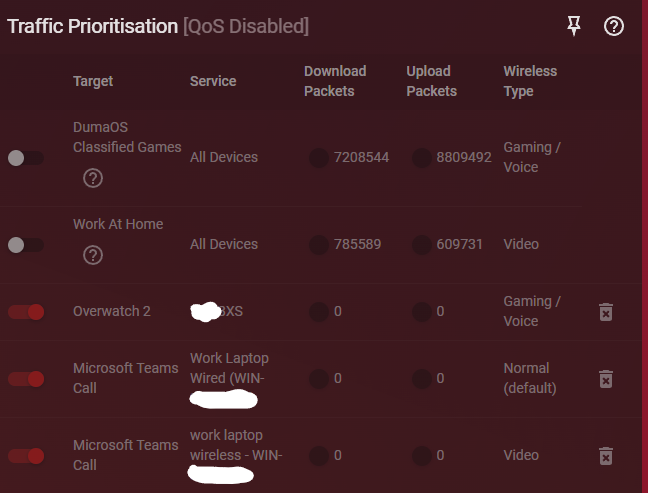
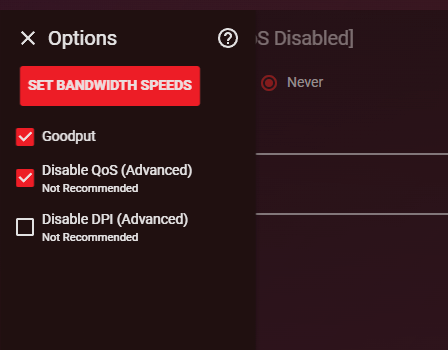
Both of the switches are identical. Yes Qos is set the previous way I had it. I have adblocker enabled. I paused it on the laptop and kept it running on the PC and both had no/slow internet when QOS was also enabled. As soon as QOS was disabled the internet ran smoothly again (just the lag spikes when gaming). I was using Traffic Prioritisation for the top two default ones, I tried disabling them and setting up my own ones but that didn't change the problem at all.
-
Hi, I have now removed my powerline adapter from the setup and am connected to the router via the following: https://www.amazon.co.uk/dp/B07HP5TN4S Router -> TP-Link TL-SG105S network switch -> a second switch -> PC This has given me increased speeds during speed tests. The internet was working fine but unfortunately when I started playing Overwatch today, I would get random 20-30ms ping spikes up to 100-400ms. Causing lag spikes thus losing fights. I tried to enable QOS again to see if this would help fix the spikes, but then that created the issue where I had no/extremely slow internet (web pages not loading, but some apps that I was already connected to still working). The reason I wanted to use the R2 was for it's QOS settings to prevent lag when playing OW, however that seems to be the thing that's causing the connection to break. Please advise what to do?
-
OK I've put it like this. Let me know if I need to change anything else. If not I'll just let you know if I experience any issues. Thanks!
-
This time the only thing I did differently was connect a iphone to the wifi and then start doing an icloud backup. I then lost wifi on all devices. I've changed QOS from on to never. I'll let you know if I run into any errors.
-
Hi, Unfortunately my wifi as dropped about 15:30ish today. I've sent you the log as soon as the router loaded. Edit: Additional info is that web pages did not work on my wired PC during this period, though I wasn't kicked from the minecraft server that I was on and I was still able to talk in chat as normal.
-
.png "Like") NetDumaR2User reacted to a post in a topic:
High ping & disconnect
NetDumaR2User reacted to a post in a topic:
High ping & disconnect
-
Thank you. I've reserved an IP for all 11 devices. There is a 12th device which I don't know what it is as it's never been online so can't see an IP to assign it. I haven't had any issues in the last hour, however the logs seem to still be spamming about DHCP lease changes. I've sent you the logs - let me know if that still looks concerning please? Will keep you updated if I get any connection issues.
-
I've navigated to the Network settings > DHCP page. I can see all my devices on the list. Should I reserve IP's for every device? It's asking me to input the last numbers in the device. 192.168.11.X - How do I know what IP I should allocate to each device please?
-
yes a powerline adapter. I've just sent you another log. I had a stable connection for about 40 minutes after making the change and just lost wifi on my laptop for about 15-30 seconds, then voice lag for a couple minutes once it reconnected.
-
My personal PC is connected via a TP-Link. I understand that's not ideal and am waiting for my super long ethernet cable to arrive next week! It says invalid lease time when I set it to 10,000 minutes, but I have set it to 168 hours and 0 minutes - is that ok? If that does happen to be the cause is there anything we can do about it or is it a case of I'll have an issue once a week ongoing? Edit: I am still getting this spammed in the logs even thought I set it to 168 hours? Thu Apr 30 16:11:25 2026 user.info com.netdumasoftware.neighwatch: DHCP lease change. Thu Apr 30 16:11:25 2026 user.info com.netdumasoftware.neighwatch: DHCP old event. Thu Apr 30 16:11:25 2026 user.info com.netdumasoftware.neighwatch: DHCP lease change. Thu Apr 30 16:11:25 2026 user.info com.netdumasoftware.neighwatch: DHCP old event.
-
Hi, I just lost internet again. This happened when I loaded my personal PC while on a work call on my laptop. I immediately logged into the router (as soon as my pc regained internet) and have sent you the log file in dms. I don't use Geo-Filter, ping heatmap, Traffic controller, or Hybrid VPN. In case it's high CPU usage causing these internet crashes, could disabling these entirely on router startup fix my issues, and if so how can I safely do this?
-
Hi, I followed your changes and it worked successfully. A few days later (today) this morning around 10:30am I didn't have internet. It regained within 15minutes. Then again this evening at 00:00 on the dot I lost internet. I've sent you my logs in a DM. Please could you advise why this is happening & how to fix it? I'm using QOS and Adblocker. Nothing else.
-
NetDumaR2User reacted to a post in a topic:
High ping & disconnect
-
 NetDumaR2User reacted to a post in a topic:
High ping & disconnect
NetDumaR2User reacted to a post in a topic:
High ping & disconnect
-
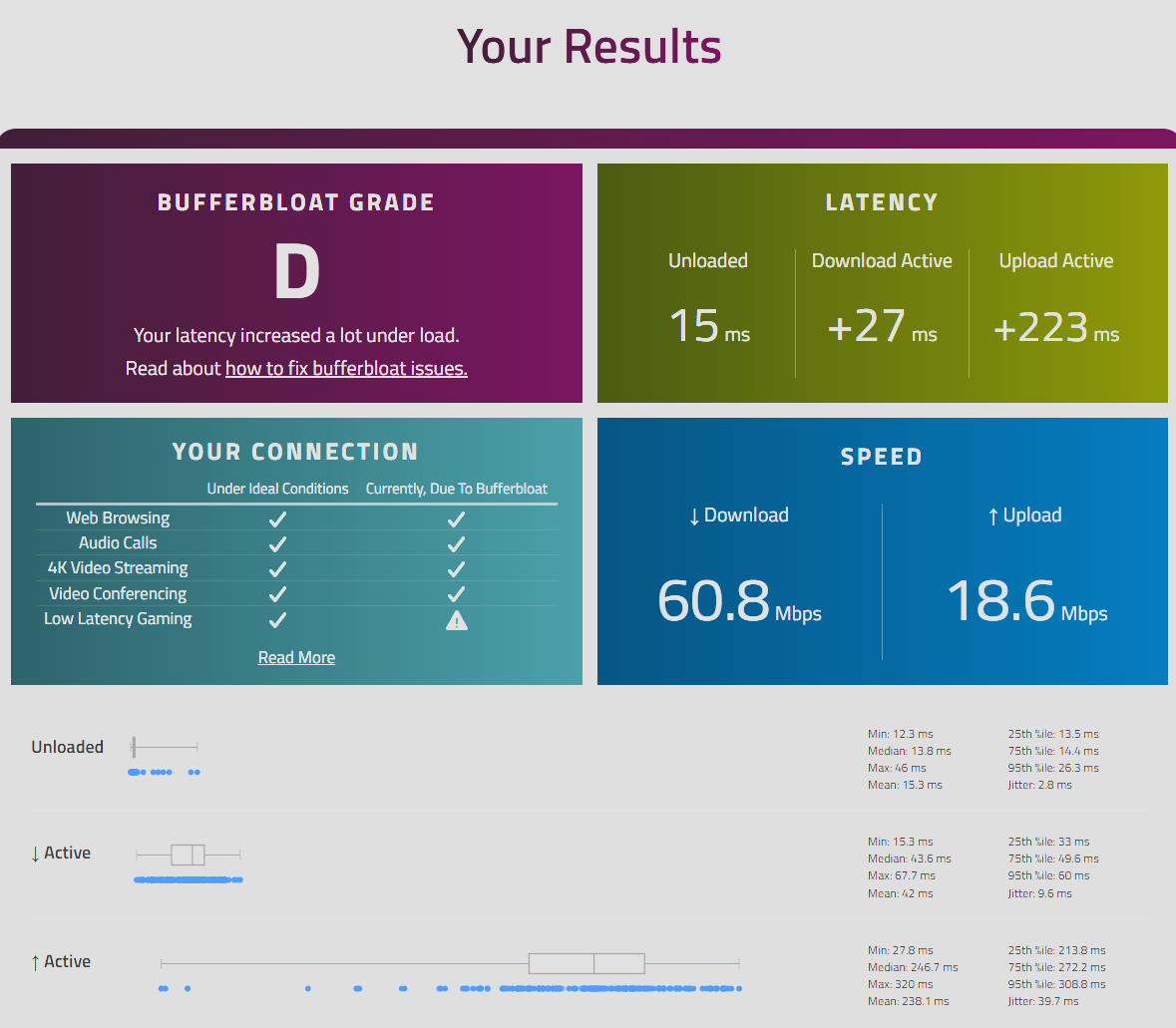
Thank you. I haven't tried gaming yet so not experienced any spikes. I used auto-setup on the QOS and enabled it as Always. It put download to 62% and upload to 100% I ran a Bufferbloat test and it came back grade D. I adjusted the download and upload to 60% each and got the same results on the test. Previously when using the PPPoE settings with the Draytek and same QOS settings I got grade A on the bufferbloat test (when the R2 was stable initially). Any ideas why it would have reduced to D, and if this means QOS isn't working correctly?
-
Thanks for the clear instructions. I believe I have got it now. My current set up is Vodafone Power Hub plugged into power, DLS plugged into hub, Wan plugged into hub connecting into R2 Wan. Wifi on hub disabled. In hub 192.168.1.1 I've gone into the Static NAT/DMZ setting and enabled Exposed Host Function. My public IPv4 Address is my IP which I cannot change. My Local IPv4 Address is what I found on the Duma R2 in system information WAN IP. In the R2 I have the Wan connected to the hub. Ethernet into my PC. PC has successfully connected to the internet and my phone connects via wifi successfully. I can still edit the hub settings in 192.168.1.1 and can also edit Dumaos in 192.168.77.1 Does this set up sound 100% correct to you? Should this resolve my latency issues? How can I be certain that Exposed Host Function is safe and that the firewall on the R2 has enabled successfully? Would it be safer to use a VPN on 24/7 now that I have turned on Exposed Host Function, or will that not make any difference? Anything else that I need to change or consider? Thank you!